1. Check your exact Fire TV model
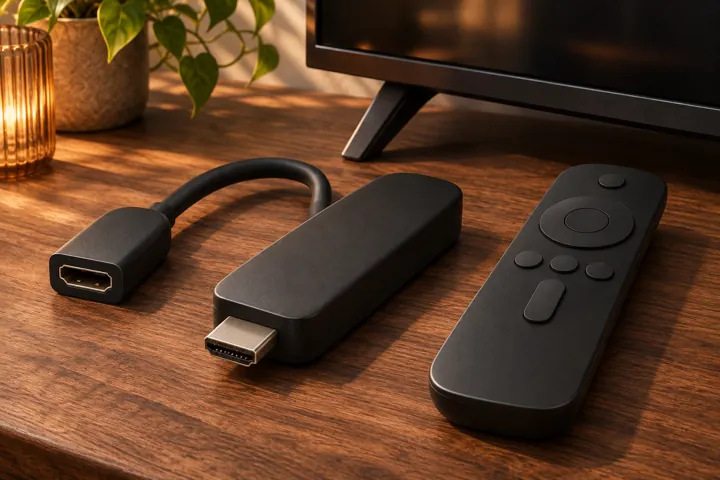
Connect your stick to HDMI and power, switch the television to the correct input and connect the stick to Wi-Fi. Open the device information under My Fire TV or Device & Software to find the model and software version.
Fire OS and Vega OS differ in which apps they support. Check compatibility for your specific device in the Amazon Appstore. An Android APK is not an installation package for a Vega device.
2. Find a compatible IPTV app
Search the Amazon Appstore on the device using the exact app name. Confirm the publisher before installing. If the player is not listed, check the model and store region before picking an alternative.
Open the player and select the connection method that matches your access details. Some use a playlist URL, while others request a server and account details. Use the information supplied for your service.
3. Test the channel list and playback
Once the list finishes loading, try two channels and check audio. If the list never loads, check for typing errors and make sure you chose the right connection type.
If playback stalls across several channels, restart the player and stick and test the connection closer to the router. Include the model, player name and error message when asking for help.